This post may contain affiliate links. As an Amazon Associate, I earn from qualifying purchases
Welcome back to Human & Hammer, where we make smart-home upgrades simple, practical, and secure.
If you’ve ever forgotten your keys or worried about whether you locked the door, a smart lock is the upgrade you’ll wish you made sooner.
These modern locks combine security and convenience — letting you lock, unlock, and monitor your doors from anywhere.
This guide walks you through how to choose the right model, install it safely, and make sure it fits perfectly into your smart-home setup.
🚪 Why Upgrade to a Smart Lock?
A smart lock replaces (or adds to) your traditional deadbolt so you can control access using your phone, a keypad, or even your voice.
🧩 Benefits
✅ Key-free convenience — unlock with your phone or code
✅ Remote access — let guests in from anywhere
✅ Activity logs — see who entered and when
✅ Integration — works with Alexa, Google Home, or Apple HomeKit
💬 Imagine your front door unlocking automatically when you pull into the driveway — no keys, no stress.
🧠 Step 1: Pick the Right Smart Lock for Your Door
Before buying, check your door type (single or double deadbolt) and ensure your chosen model supports it.
| Type | Example | Works With | Link |
| Deadbolt Replacement | August Wi-Fi Smart Lock | Alexa / Google / HomeKit | View on Amazon |
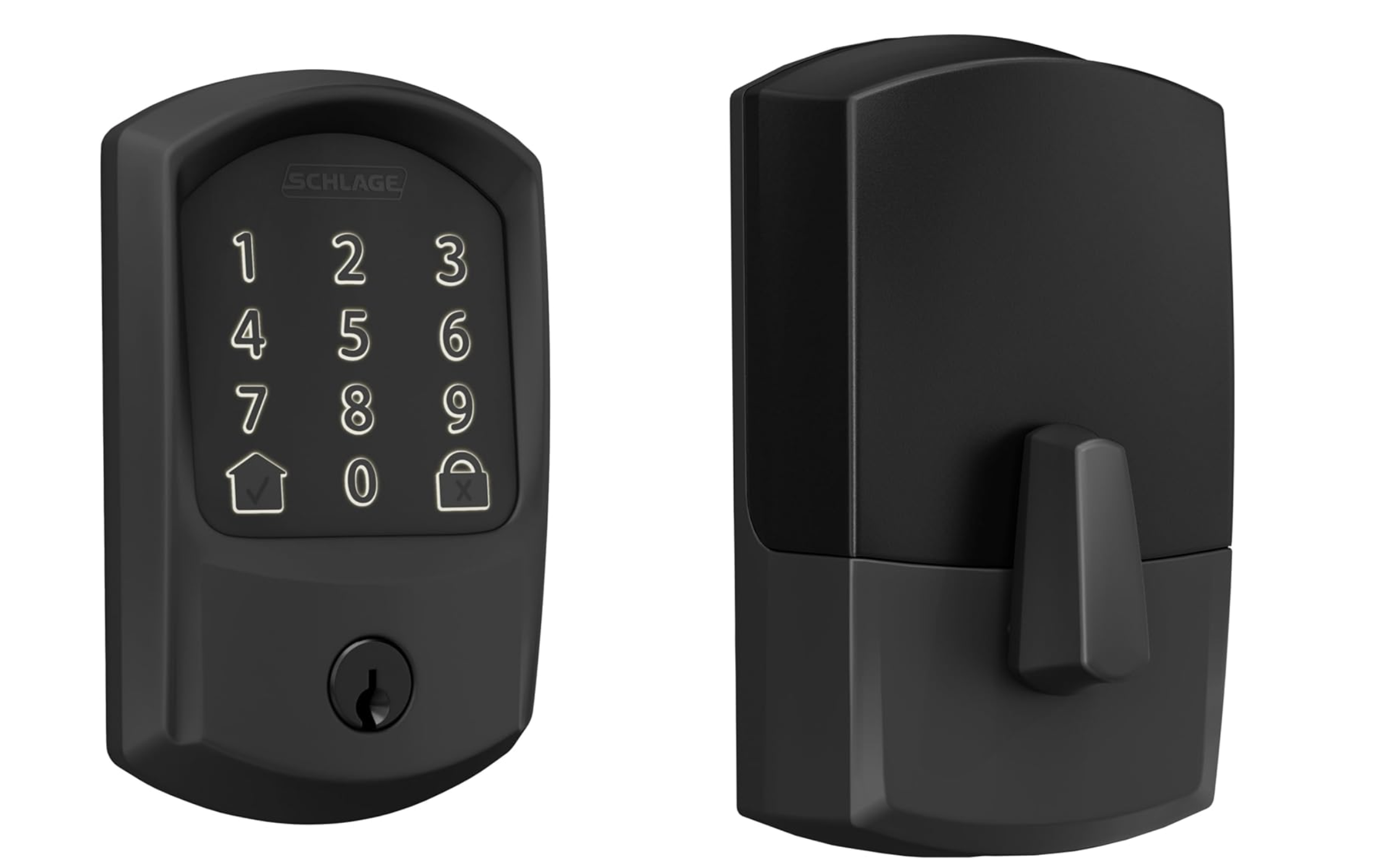
| Full Keypad Lock | Schlage Encode Smart Wi-Fi Deadbolt | Alexa / Google | View on Amazon |
| Retrofit Add-On | Yale Access Kit | Alexa / Google / HomeKit | View on Amazon |
⭐ Quick Buying Tips
- Wi-Fi vs Bluetooth: Wi-Fi lets you control the lock remotely; Bluetooth works nearby only.
- Battery life: Most last 6–12 months on AA or CR2 batteries.
- Keypad or no keypad: Keypads are great for guests or Airbnb setups.
- Backup keys: Always pick a model with physical key override just in case.
🪛 Step 2: How to Install a Smart Lock Safely
Installing a smart lock takes about 20–30 minutes and basic tools.
⚙️ You’ll Need
- Screwdriver (Phillips)
- Tape measure
- Level
- Drill (optional, if door holes are tight)
- Smartphone for setup
⚠️ Safety First
1️⃣ Leave the door open while you work — it prevents getting locked out.
2️⃣ Remove the old deadbolt and note screw hole positions.
3️⃣ Follow the lock’s diagram to install the new interior & exterior pieces.
4️⃣ Insert the latch bolt and tighten screws snugly, not overly tight.
5️⃣ Install batteries and test manual lock/unlock before connecting Wi-Fi.
⭐ Example video: Each brand app (August, Schlage, Yale) walks you through step-by-step on screen.
📱 Step 3: Connect Your Smart Lock to Your Phone and Hub
After mounting the hardware, connect the lock to Wi-Fi or Bluetooth using the manufacturer’s app.
🔗 Setup Process
- Download the app (August Home, Schlage Home, Yale Access).
- Create an account and scan the QR code on your lock.
- Pair via Wi-Fi or Bluetooth.
- Rename the lock (e.g., “Front Door”).
- Link it to your hub:
- Alexa → Add Device → Door Lock
- Google Home → + Add Device → Works with Google
- Apple HomeKit → Scan HomeKit code
Now you can say:
“Alexa, lock the front door.”
🧩 Step 4: Set Access Codes and Users
Smart locks aren’t just convenient — they’re perfect for managing access securely.
🔑 How to Use Access Codes
- Create unique codes for family members or cleaners.
- Set temporary codes for guests or deliveries.
- Get push notifications each time the door opens.
💬 Hosting on Airbnb or Peerspace?
Apps like Schlage Home or August Access can auto-generate new guest codes between stays — no key hand-offs needed.
🔐 Step 5: Keep It Secure
Even the best smart locks are only as safe as your network and habits.
🛡️ Best Practices
- Enable two-factor authentication (2FA) in the app.
- Use strong Wi-Fi passwords and a guest network for devices.
- Replace batteries every 6 months (set a calendar reminder).
- Test the physical key backup once in a while.
- Keep firmware updated through the app.
💡 Read our Smart Wi-Fi Setup Guide to make sure your network is ready for connected locks.
🧠 Step 6: Add Automation and Routines
Smart locks can do much more than just lock doors.
⚙️ Routine Ideas
- “Good Night” routine → Locks all doors + turns off lights.
- “Away Mode” → Locks doors + sets thermostat to eco temperature.
- “Arrive Home” → Unlocks door when your phone gets close (geo-fencing).
⭐ Combine with your Alexa Routines or Google Home Automations for full-house control.
🏡 Example Home Setup
| Door | Lock Model | Automation |
| Front Door | Schlage Encode | Auto-lock after 60 seconds |
| Back Door | August Wi-Fi Lock | Unlocks on arrival |
| Garage Entry | Yale Assure Lock | Linked to “Good Night” routine |
🧰 Troubleshooting Tips
| Issue | Fix |
| Door not aligning | Adjust strike plate or latch depth |
| App not connecting | Reboot phone & lock, re-pair Bluetooth |
| Batteries drain fast | Use high-quality alkalines or lithiums |
| Auto-lock too soon | Extend delay in app settings |
🏁 Final Thoughts
A smart lock is one of the best upgrades you can make for security and convenience.
Whether you want to stop worrying about keys, manage access remotely, or create clever automations, installation is quick and the benefits are immediate.
💬 Human & Hammer Tip: Start with one main door — learn how it works, then add smart locks to secondary doors later for full-home coverage.
🔗 Quick Shopping Links Recap
| Category | Product | Link |
| Smart Lock | August Wi-Fi Smart Lock | Amazon Link |
| Smart Lock | Schlage Encode Smart Wi-Fi Deadbolt | Amazon Link |
| Smart Lock | Yale Access Kit | Amazon Link |
| Accessory | Replacement Batteries (AA/Lithium Pack) | Amazon Link |
| Accessory | Door Reinforcement Plate | Amazon Link |